
Updating
Updating
Section titled “Updating”On startup the app checks once in the background whether a newer version is available. The result shows up in two places with the same content: a dismissible toast in the bottom-right corner, and the Info tab under Settings (see Info), where “Check for updates again” repeats the check any time.
On Windows, macOS, and the Linux AppImage, when a newer version is found:
-
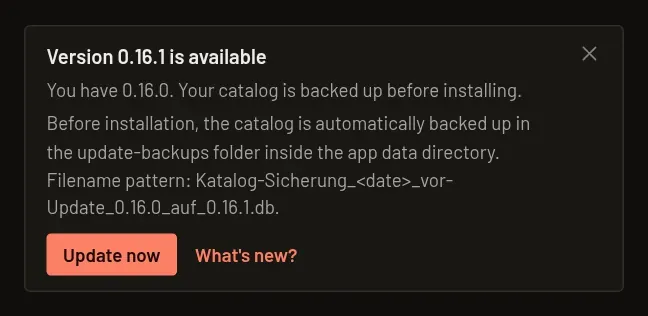
“Version X.Y.Z is available” — “Update now” downloads it; the app checks its signature before the update can be installed; “What’s new?” opens the release notes on GitHub.
-
Downloading — a progress bar shows the download; you can keep working in the app while it runs.
-
“Update X.Y.Z is ready” — “Restart and install” backs up your catalog database, then closes the app, installs the update, and restarts it. On Windows, installation itself just shows a small progress bar; you don’t need to click anything there.
-
“Later” discards the downloaded update without installing it — nothing changes. If you decide to update afterwards, click “Update now” again; it downloads the file a second time.
-
If the backup or the install fails, “Update failed” appears with “Nothing was installed; your version and your catalog are unchanged.” and a “Try again” button. The app never installs an update without a successful backup first.
Package installs on Linux (.deb, .rpm) and other Linux runs outside an AppImage can’t replace themselves
this way — only the AppImage can. There, the button reads “Go to download page” instead and
opens the release on GitHub, where you install the new version the way you normally would for
your package.
Once an update has installed successfully, the Info tab shows a short note (“Updated on <date> · Backup: <file>”) until the next update.
If the check fails (no internet, or a firewall or antivirus program blocks it), the Info tab says “Couldn’t check for updates. Please check your internet connection or firewall.” instead of “You’re on the latest version.” Some security programs, for example Kaspersky or TinyWall, block the request without telling you: allow 3MF Katalog Manager internet access there. The app only downloads a small file with the current version number. You can also download a new version from 3mfkatalog.de at any time and install it over the old one; your catalog is kept.
Restoring a backup after an update
Section titled “Restoring a backup after an update”Before installing an in-app update, the app backs up your catalog database in update-backups
inside its data folder. Open it via “Settings” → “Info” → “Open data folder”.
- Windows:
%APPDATA%\com.thebexxs.mfkatalogmanager\update-backups - macOS:
~/Library/Application Support/com.thebexxs.mfkatalogmanager/update-backups - Linux:
~/.local/share/com.thebexxs.mfkatalogmanager/update-backups
From 0.16.0, the name identifies the reason and versions:
- Update:
Katalog-Sicherung_<YYYY-MM-DD_HHMM>_vor-Update_<from>_auf_<to>.db - Schema migration:
Katalog-Sicherung_<YYYY-MM-DD_HHMM>_vor-Schema-Migration_<a>_auf_<b>.db
The date and time are local. “from” and “to” are app versions; “a” and “b” are schema versions.
The file holds the catalog from before that step. Multiple backups in the same minute may
have an extra number before .db. The app also attempts a schema backup before a required
migration after a manual installation. This does not replace your own export: a failed copy does
not stop migration.
Retention is separate for three groups:
- Normal update backups: the newest three.
- Backups taken when leaving a stable version: the oldest and newest are kept. Normal update and schema backups do not displace them.
- Schema backups: the newest two.
Unrelated files outside the recognized backup names are never deleted.
To restore the state before an update:
- Close the app.
- Install the matching previous version from the releases page.
- Choose the backup from before the relevant update or schema migration. With the app
closed, copy it over
catalog.dbin the data folder, one level aboveupdate-backups. Keep the backup file itself. - Start the app again. Changes made since that backup are not included.
Updates and pre-releases
Section titled “Updates and pre-releases”Under “Settings” → “Info”, enable “Receive prerelease versions (Release Candidates)”. The switch only appears in the regular app, not in test versions with their own catalog. You then receive release candidates and later the final version through the update workflow. Your existing catalog is used.
There is not always a pre-release. The download section of the home page only shows the pre-release while there is one that is newer than the stable version.
Enabling the switch opens a dialog warning that a prerelease may migrate the catalog to a newer schema. “Export catalog now” creates an export. After a successful export, confirm with “Enable now”; without an export the action reads “Enable anyway”. “Cancel” leaves the switch off.
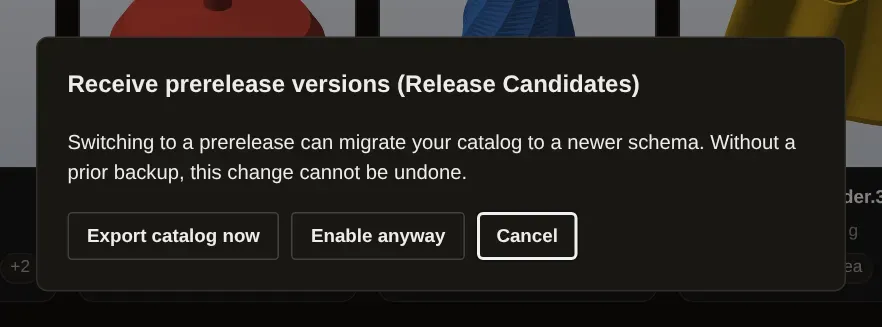
To return to the stable version, you need a backup from before the switch. Restore it as explained above or import your previously exported catalog. Disabling the switch does not undo a schema change or install an older version. The installed prerelease remains until a newer stable version becomes available. Step by step: Going back to the previous version.