Collections & tools
Collections
Section titled “Collections”Collections are a third organizational mechanism alongside folders and tags: you explicitly group several models into a project, with a manually definable order (drag & drop). Create a new collection via “+ New collection” in the sidebar and populate it via multi-select or by dragging model cards onto it. Clicking a collection in the sidebar filters the catalog down to its models:
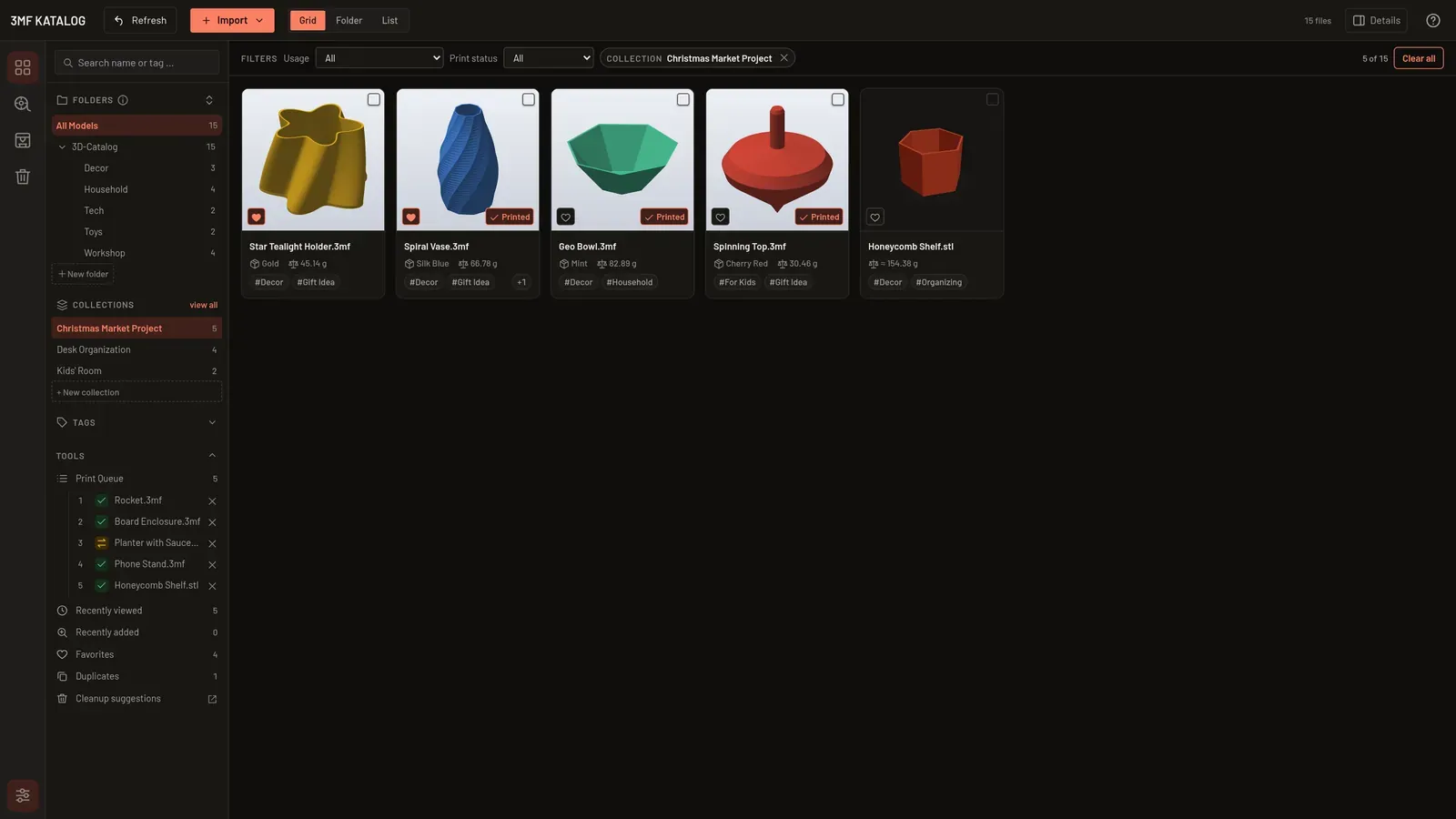
Right-click a collection in the sidebar for “Rename” and “Delete”. Deleting the collection does not remove model files. In the collections gallery, “Back to catalog” takes you back. Remove the collection filter individually in the filter bar; “Reset filters” resets all filters.
Tools in the sidebar
Section titled “Tools in the sidebar”At the bottom of the sidebar, the Tools section bundles several helpers, each with a count. Click its heading to collapse it.
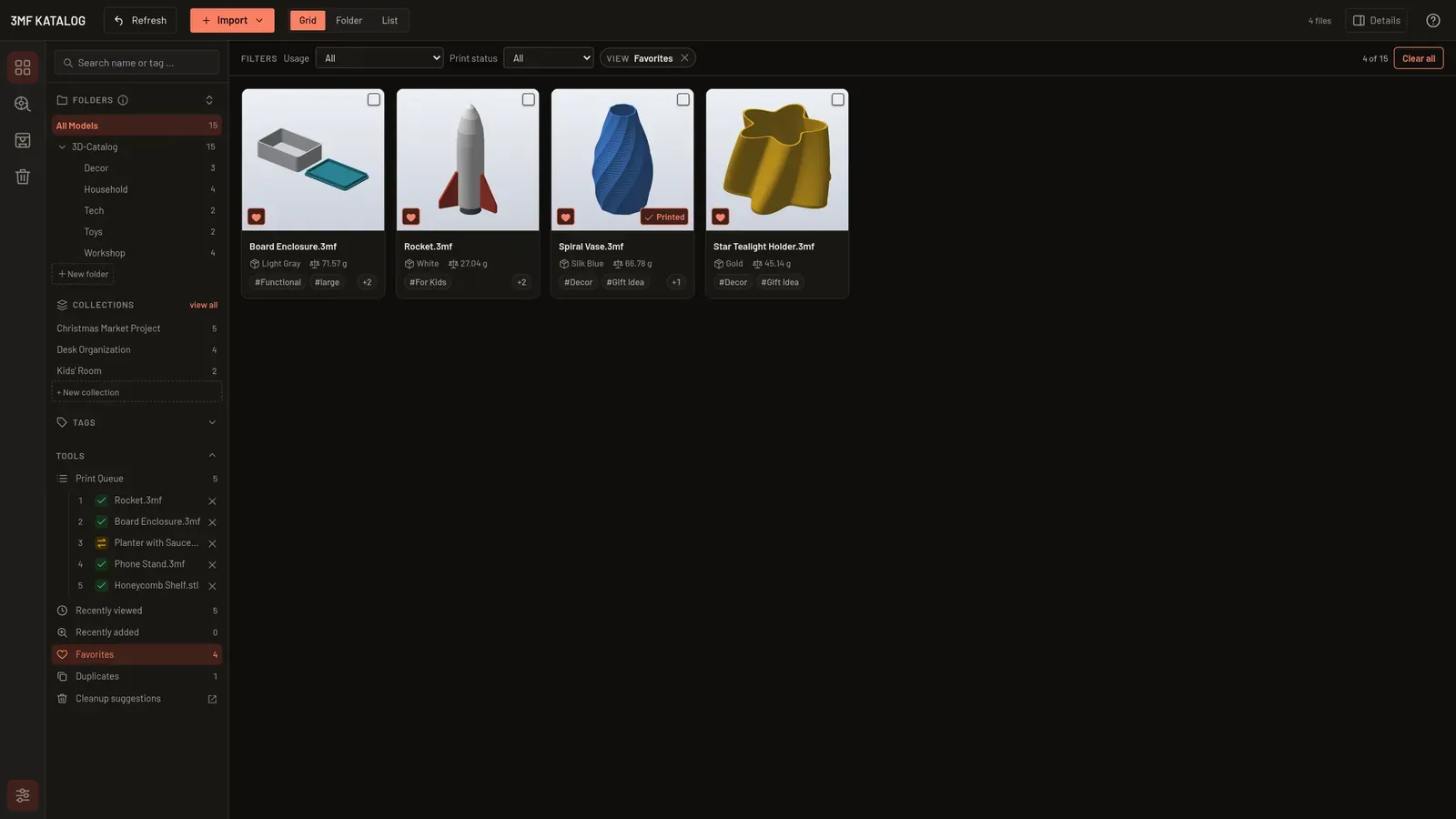
- Print Queue — models you plan to print next. Collapsible and sortable via drag & drop; clicking an entry shows the model. An icon per entry tells you whether your filament is enough (see Is there enough filament?). Marking a model as printed automatically removes it from the queue.
- Recently viewed — the 20 most recently opened models, newest first.
- Recently added — everything imported in the last 7 days.
- Favorites — all models you marked with the heart, sorted alphabetically.
- Duplicates — models with identical file content, shown side by side as groups.
- Cleanup suggestions — checks the catalog for missing files and duplicates.
A selected view appears as a filter chip at the top and can be combined with folders, tags and search. Clicking the view again or the ✕ on the chip removes it. “Material Manager”, “Printer Manager” and “Trash” are reached via the icons in the left rail.