
Keyboard shortcuts and tips
Opening keyboard shortcuts and tips
Section titled “Opening keyboard shortcuts and tips”Press “?” in the catalog or use the help icon. You can also open “Keyboard shortcuts and tips” under “Settings” → “Info”. The dialog has “Keyboard shortcuts” and “Tips” tabs.
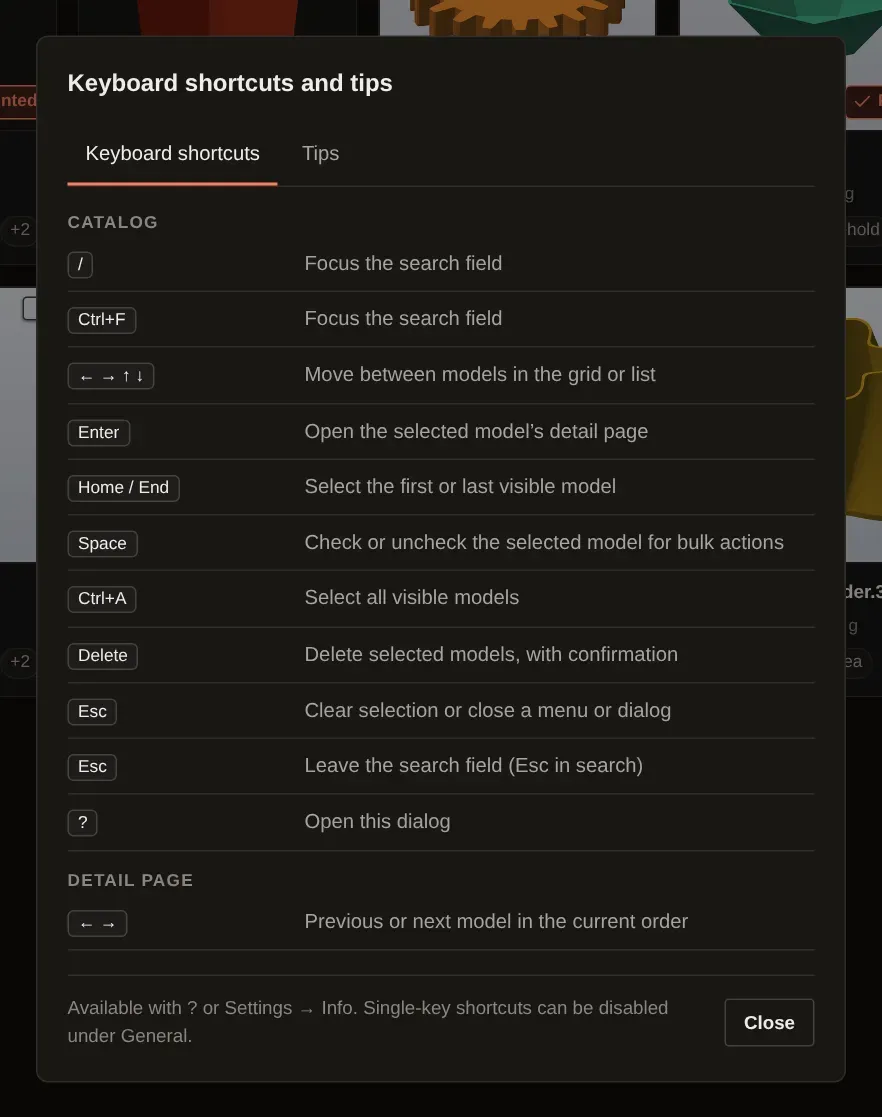
In the catalog
Section titled “In the catalog”| Key | Action |
|---|---|
/ or Ctrl/Cmd+F |
Focus search |
| Ctrl/Cmd+A | Select all models in the current filtered view, including those outside the viewport |
| Arrow keys | Move between models in the grid or list |
| Home / End | Select the first or last model in the view |
| Enter | Open the selected model’s detail page |
| Space | Check or uncheck the selected model for bulk actions |
| Delete / Backspace | Open the delete confirmation when a bulk selection is active |
M |
Move the selected models to a folder (“Move to …”) |
| Ctrl/Cmd+Z | Undo the last move of models or folders, or the last folder rename |
| Escape | Close a menu or dialog, or clear the selection |
? |
Open “Keyboard shortcuts and tips” |
In search, Escape leaves the field without erasing the query. Model shortcuts do not fire while you type in a text field or while focus is on a button, menu or dialog. The model grid and list themselves are not part of that: when focus is on a card or row, the shortcuts keep working. On macOS, use Cmd instead of Ctrl.
Ctrl/Cmd+Z is an exception: it also works after you click a button, but not while you type in a text field (which keeps its own undo) or while a menu or dialog is open. More under Undo.
Screen readers announce model cards and list rows with their name and selection state; the selection bar announces the number of selected models.
In the folder tree
Section titled “In the folder tree”Focus a folder in the folder tree, then:
| Key | Action |
|---|---|
| Enter or Space | Select the folder |
F2 |
Rename the folder (Enter confirms, Escape cancels) |
| Menu key or Shift+F10 | Open the folder’s context menu |
See Renaming and deleting folders.
Input fields and focus
Section titled “Input fields and focus”Input fields, text areas and select fields show only the app’s own highlight (a coloured border) as focus, with no additional system frame. This applies uniformly, including the tag input, date and note on the detail page. Checkboxes and radio buttons show a coloured focus ring during keyboard use.
On the detail page
Section titled “On the detail page”Left and right arrow keys open the previous or next model in the current order. While you are editing an input, these keys do not switch models.
Disabling single-key shortcuts
Section titled “Disabling single-key shortcuts”Under “Settings” → “General”, turn off “Single-key shortcuts”. This disables /, ?, M, Space and
Delete/Backspace as model shortcuts. Ctrl/Cmd shortcuts and arrow-key navigation remain available.
You can still open the tips dialog through the interface.