
Printers, AMS & resin vats
Printers & AMS
Section titled “Printers & AMS”In “Material Manager”, printers and their material units appear to the right of your stock. Assign spools and resin bottles here; manage the printers themselves in “Printer Manager”.
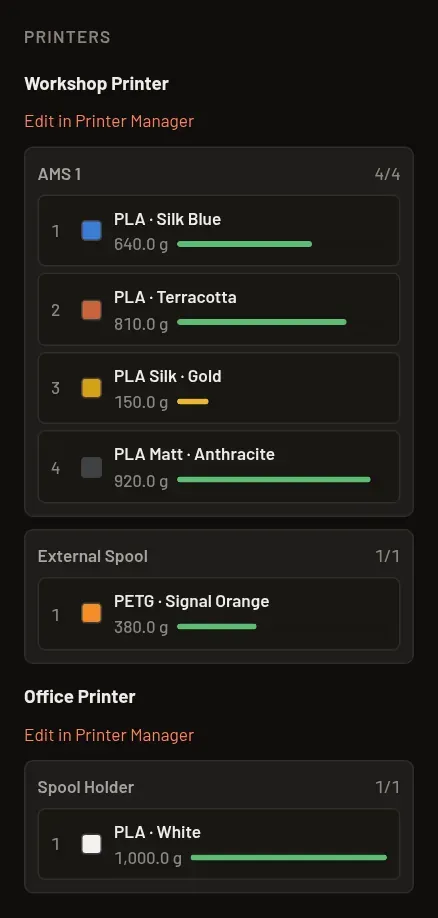
- Open “Printer Manager” in the left rail to add printers and manage units. Choose “Filament” or “Resin” when adding a printer; the kind remains fixed. Filament printers get a “Spool holder” with one slot. Add further units under “Material assignment” using “Add unit”. Printer Manager. If a printer has no slots, the hint “No slots – add them in Printer Manager” takes you there.
- Loading a spool: drag a card or row from the stock onto a slot — or click the slot and pick a spool from the list. If the slot is already occupied, the spool already in it returns to its home location.
- Unloading: drag the spool from the slot back into the stock area, or choose “Unload” from the slot’s menu. It automatically returns to its home location; the notice lets you change that location.
- The spool form now has a color value (palette or hex input) in addition to the color name; for a loaded spool, the storage-location field is labeled “Home location”.
- Which spool is in which slot is still something you enter by hand here (drag & drop or the slot menu). What the app can take off your hands is reading the filament used after a print on connected Klipper/Moonraker printers — see Printer connection.
In the “Filament” view the right-hand column only shows filament printers, in the “Resin” view only resin printers.
Resin printers
Section titled “Resin printers”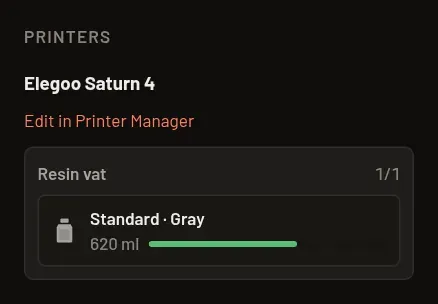
If you choose “Resin” when adding a printer, it gets exactly one resin vat with room for one bottle instead of the spool holder. The vat can’t be renamed or deleted, and resin printers can’t have any other units; the printer itself can be renamed and deleted like any other.
- In the “Resin” view of the stock, the resin printer appears in the right-hand column. The vat shows the inserted bottle with its color, the remaining ml and a fill bar.
- To insert a bottle, drag its card or row onto the vat, or click the vat and pick a bottle — the menu only lists resin bottles. If the vat already holds a bottle, that one returns to its home location.
- “Unload” (vat menu, or drag it back into the stock area) returns the bottle to its home location, just like spools.
- “− Use” is available for an inserted bottle in the vat’s menu.
- Resin bottles only fit into a resin vat, filament spools never do. A target that doesn’t fit isn’t highlighted while dragging, and dropping there does nothing.
- Resin printers have no printer connection and are left out of “Is there enough filament?”, the material cost and the queue icon.
- A bottle in the vat keeps its kind: you can only change it to filament after unloading it (and the same goes for spools in a slot).