
Sync with the disk
Refreshing the catalog
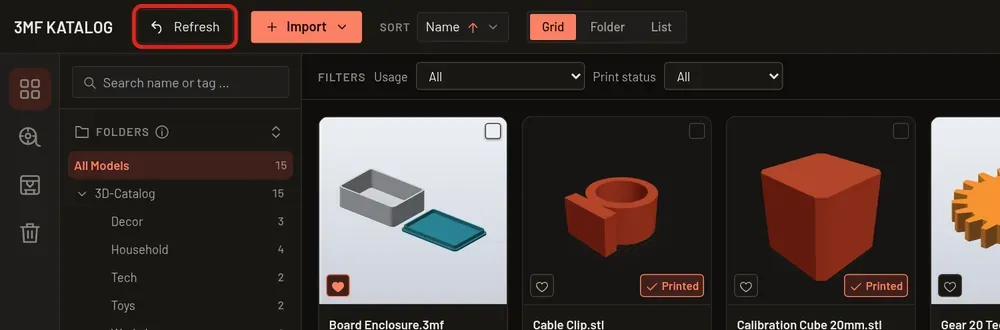
Section titled “Refreshing the catalog”If you add, move or delete files in your catalog folders outside the app (for example in your file manager), Refresh brings the catalog up to date. The button sits in the header next to “Import” and is only there in the catalog view. F5 does the same while no dialog is open. Pointing at the button shows when the catalog was last checked (“Never” if it hasn’t been yet). It is disabled while an import is running.
Preview first, then confirm
Section titled “Preview first, then confirm”Refresh first only looks. Nothing in the catalog changes until you confirm.
- Everything matches: a short notice “Everything is up to date” appears at the bottom of the window.
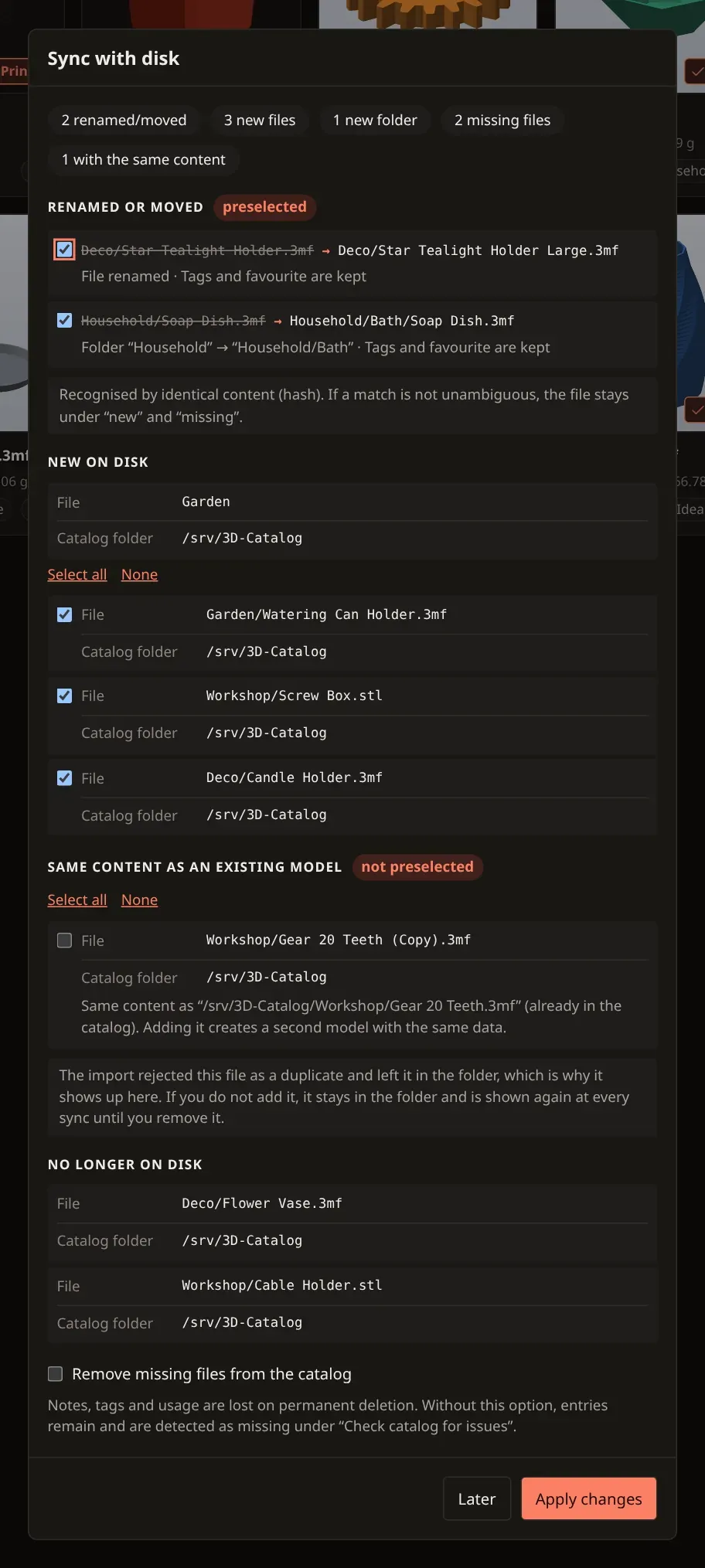
- Otherwise the “Sync with disk” dialog opens. It counts “new files”, “new folders” and “missing files” (and, when they apply, “renamed/moved”, “with the same content” and “missing folders”) and lists them under “Renamed or moved”, “New on disk”, “Same content as an existing model” and “No longer on disk” (the path inside the catalog folder, with the catalog folder below it). New folders appear only when they contain new supported files; empty folders are left out. “Apply changes” adds the new files and folders to the catalog, “Later” closes the dialog without changing anything.
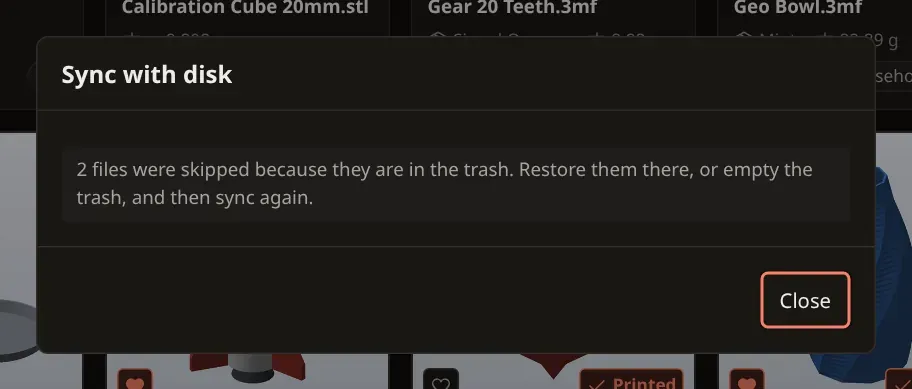
- Nothing to apply: if there are no new, renamed or same-content files and you have not ticked the removal option (for example when only the notice about files in the trash appears), the dialog only offers “Close”.
- After applying, a notice sums up “N renamed/moved · N new files · N new folders · N files removed”, and the new entries are briefly highlighted.
Choosing what to apply
Section titled “Choosing what to apply”Every entry in the “New on disk” and “Same content as an existing model” lists has its own checkbox, and so does every row under “Renamed or moved”. Above each of the two file lists there are “Select all” and “None”. They tick or untick only the entries of that one list; the other list and the renames keep their selection.
Renamed or moved files
Section titled “Renamed or moved files”If you renamed or moved files outside the app (for example in your file manager, including a whole folder), the app recognises them by their identical content. They are listed under “Renamed or moved” and are preselected. When you apply, the existing catalog entry keeps its tags, favourite, notes, print log and collections instead of a second, empty entry being created. If a whole folder was renamed, the folder entry follows.
A match is only made when it is unambiguous and the file is unchanged. Otherwise the file stays under “new” and “missing”.
Files with the same content as an existing model
Section titled “Files with the same content as an existing model”New files whose content is already a model in the catalog are listed separately under “Same content as an existing model” and are not preselected. Adding one creates a second model with the same data. If you do not add them, they stay in the folder and are shown again at every sync until you remove them.
Files in the trash
Section titled “Files in the trash”A new file whose path is still held by the trash is skipped. A notice counts these files: restore them in the trash, or empty it, and then sync again. The dialog also opens when this notice is the only finding.
Missing files
Section titled “Missing files”Missing files are kept by default. Their entries stay in the catalog and still show up under “Scan catalog for issues” (Settings → Catalog). To remove them, tick “Remove missing files from the catalog”. The button then offers “Apply changes” (with new files) or “Remove” (only missing files). Removed entries go to the trash, so you can still restore them. Notes, tags and usage are lost once they are deleted permanently from there.
Folders that no longer exist on disk are marked “missing on disk” in the folder tree and are listed by the sync as “N missing folders” (with their number of models). They are only reported. If “Remove missing files from the catalog” is ticked, the sync also removes the folder entry together with its missing models (into the trash).
When something cannot be read or reached
Section titled “When something cannot be read or reached”- Folders that cannot be read are listed with their paths (“N folders could not be read”). The rest is still compared.
- Files that cannot be read are skipped and shown with their paths after applying (“N files could not be read”). All readable files are imported anyway.
- Unreachable catalog folder (for example a network drive or USB drive that is not connected, or an empty or unmounted folder): the sync stops with “A catalog folder is unreachable. Please check the connection. Remove the folder from the catalog or reconnect it.” and the path, and the catalog stays unchanged. Files on such a folder are never treated as missing. “Try again” repeats the check.
- Other messages: “The catalog has changed. Please scan again.” (something changed between preview and applying), “A path has changed. Please scan again.”, “A file could not be imported. The catalog is unchanged.” and “The sync failed. Please try again.”
Sync at start
Section titled “Sync at start”Under Settings → General → “Sync with disk” there are two switches, both off by default:
- “Sync at start”: at start the app checks your catalog folders in the background. If something changed, a notice appears (“Found at start: …”) with “View” and “Later”; “View” opens the same sync dialog as “Refresh”. If there is nothing to report, nothing happens. Large catalogs or network drives can take a while.
- “Add new files automatically”: new files and detected renames are taken over at start without asking (“Added at start: …”). It only works together with “Sync at start” (turning that off also turns this one off). Files are never removed from the catalog, and files with the same content as an existing model are not added; you still decide those in the sync dialog (F5). What remains open is named in the notice under “Still open: …”.
The notice stays until you close it. If a catalog folder is unreachable, it reports only that (“N catalog folders not reachable”).