
Use Docker
Open the desktop and set up the catalog
Section titled “Open the desktop and set up the catalog”- Open the server address configured during installation and sign in.
- Use the app in the streamed desktop. File dialogs show container folders, not folders on your PC.
- For existing models, choose “Adopt an existing folder structure” and the “Modelle” bookmark for
/modelsin the file dialog. Also see Setup.
For another mounted folder such as /models2, enter its container path in the file dialog. Preserve these mount destinations after updates. Copy new files into the mounted model folder on the server and import them through “Import” → “Files…” or “Folder…”.
The clipboard between browser and desktop can differ from a local installation. If copying a link does not work, open /katalog/ directly and search for the file there.
Open the companion page
Section titled “Open the companion page”Open the same server address with /katalog/ appended in a regular browser tab, for example http://192.168.1.10:3000/katalog/. The page uses the same credentials. Its heading is “Download and slicer”; the app’s section is “Download & slicer”.
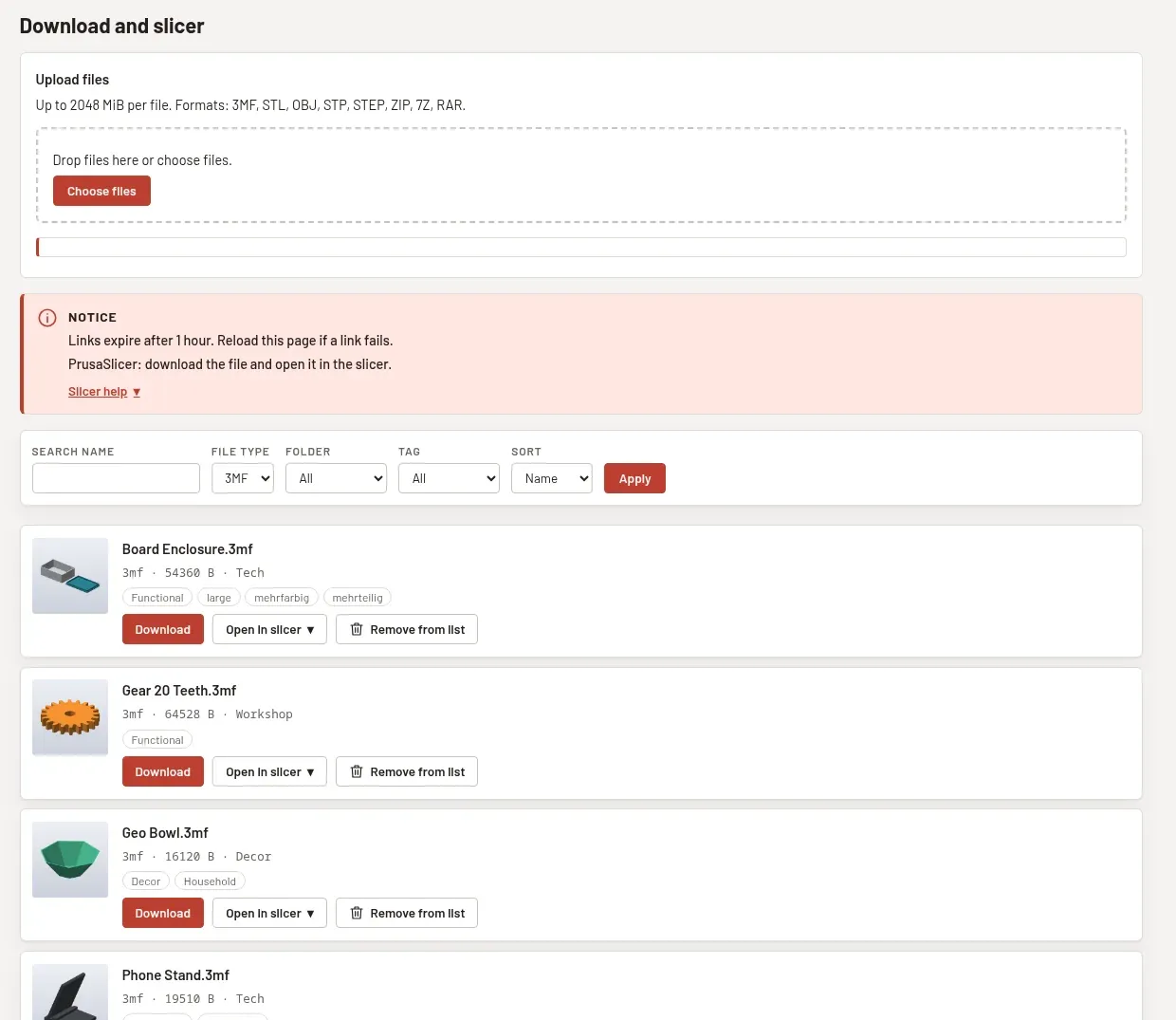
Use “Search name”, “File type”, “Folder”, “Tag” and “Sort” to narrow the list, then select “Apply”. Sorting offers “Name”, “Newest” or “Size”. “Previous” and “Next” navigate pages of up to 50 files.
The initial language follows your browser language, with German as the fallback. Choose German, English, Spanish or French in the header. With JavaScript, “Color scheme” switches between “Automatic”, “Light” and “Dark”. Search and downloads also work without JavaScript.
Workflow: upload and import a model
Section titled “Workflow: upload and import a model”- Find “Upload files” on the companion page.
- Select “Choose files” or drag files onto the upload area. JavaScript must be enabled.
- Wait for “Done”. Each file has progress and “Cancel”. The browser sends files sequentially; the service allows two concurrent uploads overall.
- Switch to the app in the browser desktop. Choose “Import” → “Folder…” and
/models/Eingang. Use your configured path if you changed the destination. - Import uploaded archives individually through “Files…” when needed. Uploading does not extract them. Adopting a folder picks up models but does not extract archives inside it.
- Reload the companion page after importing to see the cataloged models.
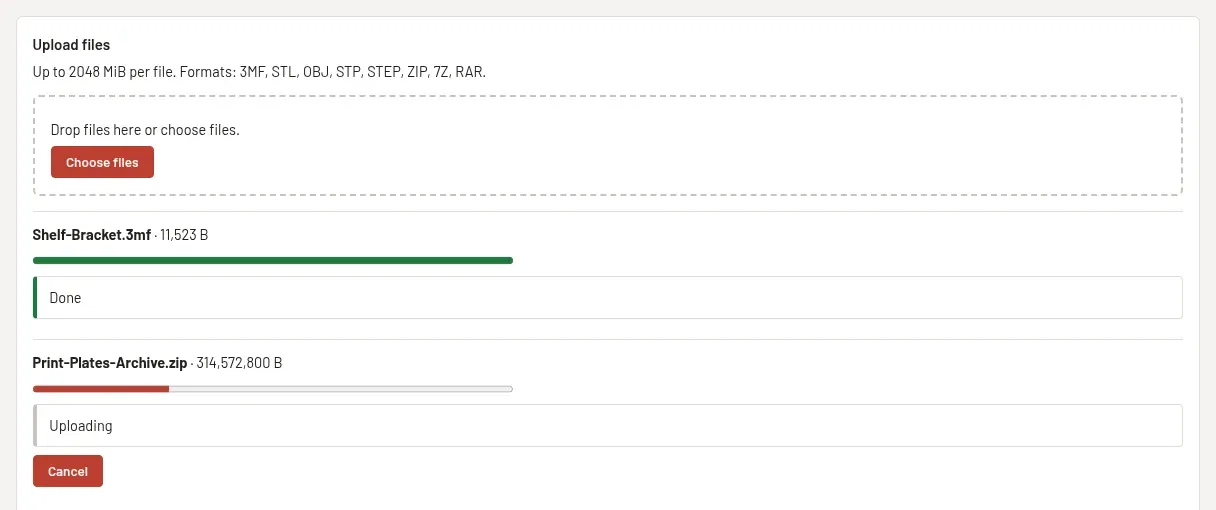
A successful upload only places a file on the server. The companion does not write to the catalog database or trigger an automatic app import.
Upload limits
Section titled “Upload limits”Allowed extensions are .3mf, .stl, .obj, .stp, .step, .zip, .7z and .rar. Filenames and initial signatures are checked; this is not full format validation or a virus scan. Existing files are not overwritten: name conflicts get suffixes from (2) to (100), after which the upload is rejected.
KATALOG_UPLOAD_DIR defaults to /models/Eingang. The directory is created on the first upload. It must remain inside an allowed model root after resolving symlinks. The destination or its existing parent must be writable and traversable by PUID/PGID. Missing permissions produce a hint instead of the upload area.
KATALOG_UPLOAD_MAX_MB defaults to 2048 MiB per file and must be a positive integer. Enable changes in both .env and Compose. Internal nginx limits uploads to 4 GiB, so use no more than 4096. Free space must exceed the file size plus 256 MiB. After 60 seconds without body data, the service aborts the upload. Following a service crash, temporary leftovers older than one hour are removed on the next start.
An upstream reverse proxy needs a suitable size limit and streaming. Check its configuration for error 413. The Docker README gives these Nginx Proxy Manager settings under “Advanced”:
client_max_body_size 4g;proxy_request_buffering off;Also adjust proxy timeouts to the transfer duration; internal timeouts are 3600 seconds.
Workflow: download or open in a slicer
Section titled “Workflow: download or open in a slicer”- Find the model on
/katalog/. - “Download” saves it on the device running your browser.
- Alternatively, expand “Open in slicer” and choose your locally installed slicer. This device must be able to reach the server address. On Linux, the slicer’s URL scheme must be registered.
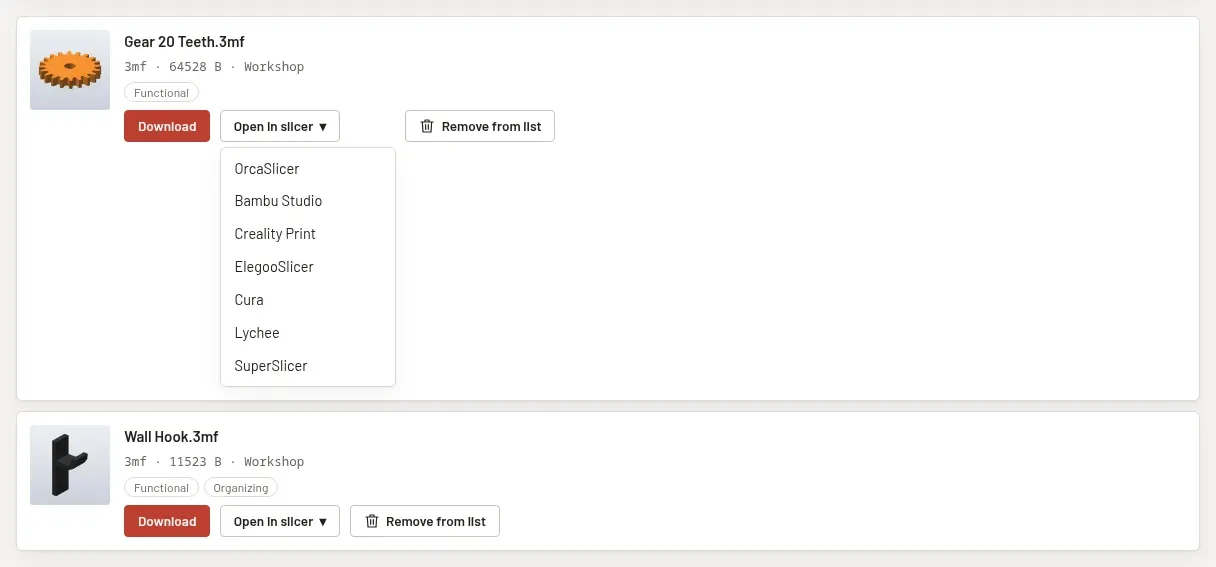
| Slicer | File types supported by the link |
|---|---|
| OrcaSlicer, Creality Print, ElegooSlicer, SuperSlicer | 3MF, STL, OBJ, STP, STEP |
| Bambu Studio | 3MF only; JavaScript adjusts the link on macOS. |
| Cura, Lychee | 3MF, STL, OBJ |
| PrusaSlicer | Download the file and open it in the slicer. |
Slicer links are signed and valid for one hour. They allow downloads without login during that time. Treat them as credentials and do not share them publicly. Reload the page when a link expires. Slicers often reject self-signed HTTPS certificates on port 3001; use HTTP on port 3000 within your home network or a reverse proxy with a valid certificate.
Only catalog files outside the trash and inside allowed model roots are served. Defaults are /models and /models followed by digits. Paths containing .. and symlinks pointing outside are blocked. Unavailable or disallowed files remain visible without download buttons. There is no ZIP batch download.
Starting from model details
Section titled “Starting from model details”“Open in browser” displays the app dialog “Download and slicer in your browser”. Transfer the link to a new tab in your own browser. The container app does not open that tab itself. After the first companion visit, the app knows the browser address; subsequent visits update it. Without a known address, it shows the path to append.
To fix the address, set KATALOG_PUBLIC_URL in .env and enable it in Compose, for example https://katalog.example.de using your actual domain. Accepted values contain http:// or https://, a host and an optional port; no path, query, fragment or trailing slash. The fixed address takes priority. Invalid values are ignored with a log message.
Remove from the list and restore visibility
Section titled “Remove from the list and restore visibility”- Choose “Remove from list” and confirm with “Remove”.
- The file stays in the catalog and in storage. Only the companion hides it. Download and slicer links then return
404, including previously issued links. - Immediately choose “Undo”, or open “Show hidden files (N)” and select “Show again”.
Nis the displayed count.
This list is stored in /config/.katalog-web-hidden.json. It is not the trash and does not delete models.
Workflow: view the catalog on another device
Section titled “Workflow: view the catalog on another device”- Ensure LAN access is configured.
- On another PC, phone or tablet, open the same server address with
/katalog/and sign in. - Find a model and download it if needed. For full catalog editing, open the server address without
/katalog/to access the shared desktop.
Additional container variables
Section titled “Additional container variables”Add these under environment: in Compose when needed:
| Variable | Effect |
|---|---|
CATALOG_DB |
Fixed database path. Otherwise the newest /config/.local/share/*/catalog.db by modification time is selected. |
KATALOG_ALLOWED_ROOTS |
Replaces allowed model roots with a colon-separated list of absolute container paths. |
KATALOG_WEB_PORT |
Internal service port, default 8099; startup adjusts the nginx proxy. Do not publish it on the host. |