Import & archives
Importing files
Section titled “Importing files”The “Import” button offers several ways in: pick individual files via a dialog, import an entire folder (including subfolders), import only the contents of a folder (“Folder contents…”, see below), or drag files straight from your file manager into the catalog window. On import, dimensions, volume, object count, and (if present in the file) material information are extracted automatically, and the app suggests matching hashtags that you’re free to edit afterwards. Automatically assigned tags such as “multipart”, “mini”, “large” and “multicolor” appear in the interface language you selected; search finds them under both names. The “Assign tags automatically” switch under Settings → Catalog (on by default) controls this: when it is off, import, sync with disk and source folders assign no tags automatically. Existing tags stay, and you can still add tags by hand.
For 3MF files downloaded from MakerWorld, the app also reads the platform, model ID and profile ID from the file; they appear in the model’s details. For models already in the catalog, “Rescan metadata” fills them in. Files without these details show nothing.
If the app imports a file that’s already present in the catalog content-wise (an exact duplicate check via content hash), it’s recognized instead of being added a second time. In the result list, the reason names the catalog file the duplicate matches (“Same content as …” or “Already in the catalog: …”); “Show” jumps to the existing model. If the catalog file is ambiguous or gone, the general reason is shown instead.
Destination, progress and cancellation
Section titled “Destination, progress and cancellation”The “Import” menu lists “Files…”, “Folder…”, “Folder contents…” and “Check source folders” (see Source folders). A hint box at its top explains what an entry does and where files go while you point at it:
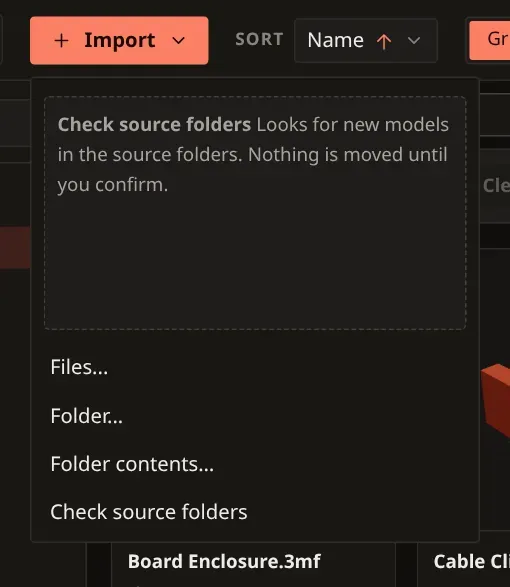
Files from the file dialog move into the active folder or catalog root when a destination is configured. Without a destination they stay in place. The destination is captured when the job starts; switching folders later does not change it. For folder imports and files or folders dropped into the window, files stay in place and subfolders become catalog folders. Archives use the destination dialog described below.
A progress row shows the current phase, the files found so far during scanning, and import progress. “Cancel” stops the current job; completed work remains saved. Further files dropped into the window during an import wait as queued jobs.

After the import, the notice offers a “View recently added” button (also in the result window as soon as something was imported). It opens the “Recently added” view under “Tools” and first resets all filters, so an active folder or search does not hide the new models.
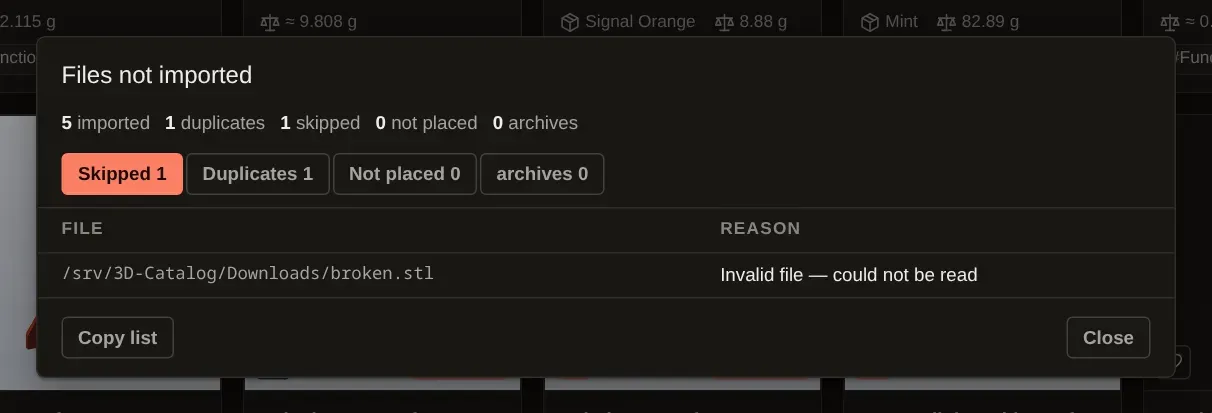
After completion, cancellation or failure, “Details” opens “Files not imported”. It lists files and reasons under “Skipped”, “Duplicates”, “Not placed” and “Archives”. “Copy list” copies the list to the clipboard. “Not placed” means the file was cataloged but could not be moved to its planned destination.
Importing folder contents
Section titled “Importing folder contents”“Import → Folder contents…” imports all supported files from a folder you choose, including those in its subfolders, directly into the current target folder. That is the active catalog folder, or the catalog location when “All” is selected. In contrast to “Folder…”, the structure of the source folder is not recreated in the catalog and the source folder itself is not added. Files are moved into the target folder just like with “Files…”, when a catalog location is configured. Files with the same name are not overwritten and stay in the source folder. Empty source folders are kept on disk. The progress row names this import “Folder contents”.
If files changed outside the app, bring the catalog up to date with Refresh.
Date in file names
Section titled “Date in file names”On import: under Settings → General, the switch “Rename files on import” is off by default.
When it is on, new model files that come into the catalog during import get the local date and
time as a prefix, e.g. 2026-10-12_14-41_Model.3mf (format YYYY-MM-DD_HH-MM_). External files
that stay in their current location are not renamed. Existing entries, sync with disk, restoring
from a backup and extracting archives are not changed by this.
For existing models: in the selection bar, “More → Rename with date …” prefixes the selected models with a date. In the “Rename files with date” window, “Date” lets you choose the source: “File modified date” (default) or “Import date”. A preview first lists every old and new name; nothing is renamed until you confirm with “Rename N files”. Files are renamed on disk and in the catalog together; programs that know the old name will no longer find them.
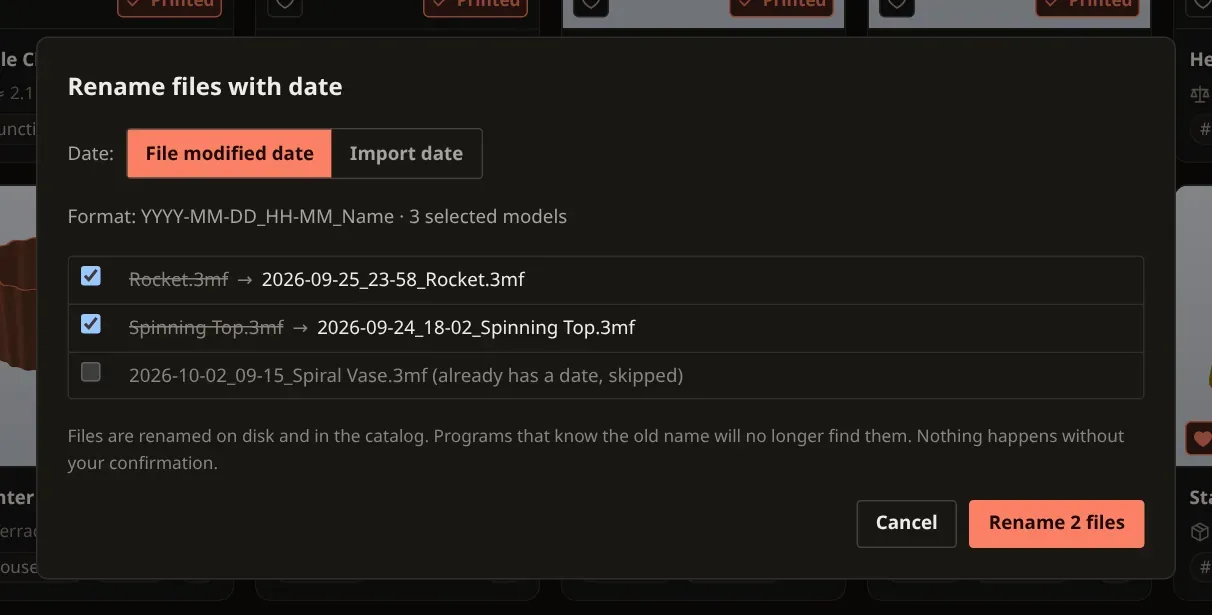
Some files are skipped, each with its reason in the preview: they already have a date, the target name is taken, the file is missing on disk, it is in the trash or outside the catalog folders, the new name would be too long, no date is available, or the name or location is not allowed. If renaming fails for one file, the others are still renamed; the notice says how many files were renamed and how many failed. At most 5000 models can be renamed at once.
Source folders
Section titled “Source folders”Source folders are folders where new models show up, for example your Downloads folder. The app looks into them on request and moves the files you select into the catalog. Nothing happens on its own.
- Setting up: Settings → General → “Source folders”. “Add folder …” adds a folder, “Remove” takes it off the list. A source folder must not be the catalog folder itself or inside it (or above it), must not be a system folder and must not overlap another source folder. While an import is running, the list cannot be changed. A folder that cannot be reached is marked “not reachable”.
- Checking: “Import → Check source folders” looks in all source folders (up to three levels of subfolders deep) for supported files that are not yet in the catalog. A notice gives the result (“N new files in the source folder …”, “No new files in the source folders”); “View” opens the list, “Later” closes the notice. If no source folder is set up yet, the settings open instead.
- Check at start: the switch “Check when the app starts” (off by default) lets the app check once after it starts. It then only shows a notice.
- “New files in the source folder” dialog: tick the files you want. “Move N to the catalog”
moves them into the catalog folder like a normal import; a catalog folder must be set up for
this. “Decline selected” leaves the files where they are, and the app stops offering them. Files
with the same content as an existing model are labelled “Same content as an existing model” and
are not preselected. Nothing is moved before you confirm.
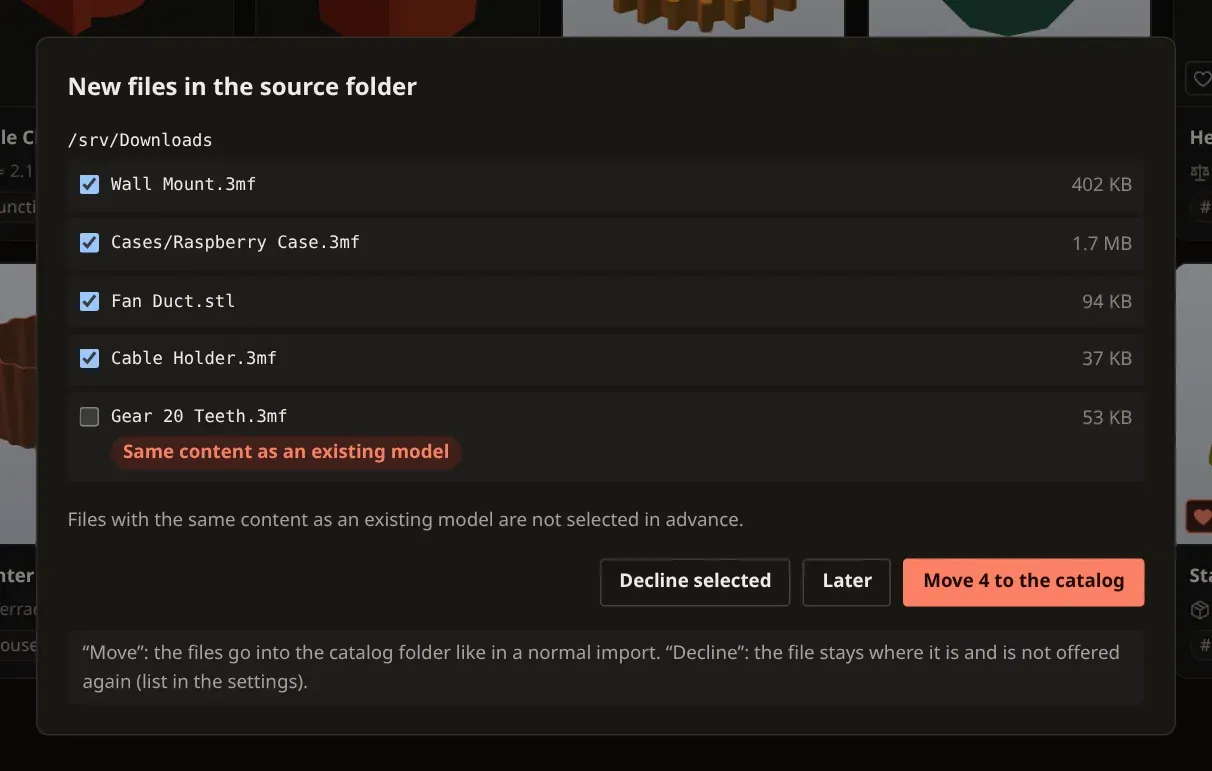
- Declined files: the settings show “Declined files: N”. “Reset list” makes the app offer them again. If you remove a source folder, its declined files also disappear from this list.
Extracting archives
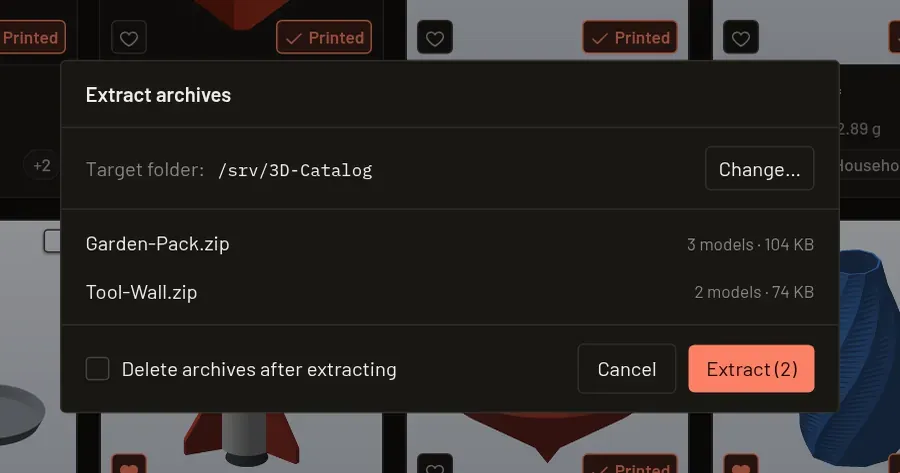
Section titled “Extracting archives”If you import or drag in a single archive (.zip, .7z, .rar, .tar, .tar.gz/.tgz,
.tar.bz2, .tar.xz, .tar.zst) instead of individual model files, a dialog opens before the
actual import:
- Target folder — prefilled with the active catalog folder or your storage location, changeable
via “Change…”. Each archive gets its own subfolder inside it. Only catalog folders or a folder
chosen in one of the app’s folder-selection dialogs (e.g. via “Change…”) can be the target; folders that contain protected locations — such as your
home directory itself — are rejected as a target (pick a subfolder instead, e.g.
~/3D-Prints). - Conflict when the subfolder already exists — choose between “Create a new numbered folder” and “Merge” (existing files stay unchanged; skipped ones are counted in the result).
- “Delete archives after extracting” checkbox — off by default. When enabled, the original archive is only deleted if everything was actually extracted. If something was not extracted (blocked file types, unsafe entries, or files that already existed when merging), the archive stays in place — the result banner names the reason.
- Grayed-out rows — archives with no models inside, that are corrupted, encrypted, or in an unsupported format are shown grayed out in the list and are automatically skipped during extraction.
If checking the archive fails outright (for example because it was changed or deleted in the meantime), no dialog opens — instead the result banner shows “<name> failed: <error>” until you dismiss it.
For security reasons, programs, scripts, and shortcuts inside archives are never extracted;
password-protected and multi-part archives are detected but not extracted. If a RAR archive contains a
single file over 1 GB, the whole archive fails (anything already extracted is removed again). File
references in RAR archives (created with rar -oi) are not resolved: they are skipped, created as an
empty file, or make the whole archive fail on a checksum error. Folder import still does not extract any archives it contains.