
Context menu & catalog cleanup
Quick actions: context menu and multi-select
Section titled “Quick actions: context menu and multi-select”Right-clicking a model opens a context menu with the most important actions:
Use “Rename” to change the file name right in the context menu — the file extension is shown fixed and can’t be typed away. If the new name moves the model out of the visible area under the default name sort, the view scrolls to it automatically.
To edit several models at once, select them via the checkboxes at the top left of each tile or with “Select all”. The selection bar above the models is always visible in the catalog, even without a selection, and the detail panel does not cover it. With nothing selected, “Select all” is usable; the other actions are greyed out, and screen readers announce the hint “Select models first.” The bar shows “n selected”, and screen readers announce the count. Its actions are grouped by purpose:
- Selection: “Select all” and “Clear selection”.
- Edit: “Add tag”, “Remove tag” (a dropdown listing every tag present in the selection), “Add to collection” and “Printed”.
- File away: “Move …” and “Add to queue”.
- More: rarely used actions: “Set license” (set or clear a license), “Not printed”, “Rename with date …” and “Remove from catalog”; inside a collection also “Remove from collection”.
- Delete: deletes the selection after a confirmation.

In a narrow window (under 1000 pixels wide), “Remove tag”, “Printed” and the actions of the “File away” group also move into the “More” menu, together with “Set license”. With a multi-selection active, the Delete/Backspace key also opens the delete confirmation directly:
Moving models
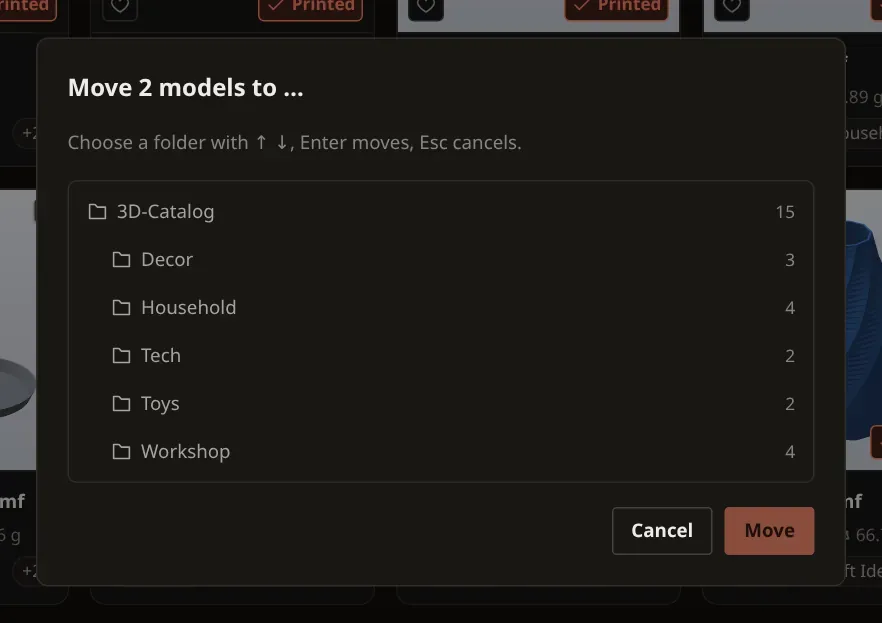
Section titled “Moving models”“Move to …” puts one or more models into a folder. You find the command in the selection bar
(“Move …”), in a model’s context menu, or with the M key (while single-key shortcuts are
enabled). If the model you right-click is part of the selection, the context menu moves the whole
selection. A dialog with the folder tree opens: choose the target folder with ↑ ↓, Enter moves,
Esc cancels.
Alternatively, drag one of the selected cards onto a folder. All selected cards move with it, and the folder shows the count (“Drop here: move n models”). Moving takes effect on disk immediately. Moved files keep the permissions and modification time of the original file.
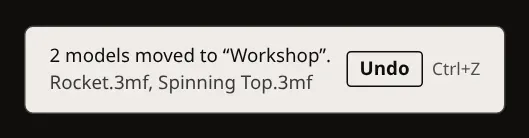
A notice then names the target folder. If files were skipped or failed, it says so too, for example because the target folder already holds a file with the same name, the file is already in the target folder, or it is missing on disk.
The notice after a move has an “Undo” button (shown for 15 seconds). Ctrl+Z (Cmd+Z on macOS) does the same. You can undo moving models, moving folders and renaming folders, several steps in a row (up to 20), as long as the app keeps running. Ctrl+Z does not act while you type in a text field (which keeps its own undo) or while a menu or dialog is open. If a step is not possible, for example because a file with that name already exists at the old place, the notice says why.
Remove from catalog
Section titled “Remove from catalog”Use Remove from catalog in a model’s context menu or in the selection bar to remove catalog entries. The confirmation names the model or shows the number of selected models. Confirm with Remove. The files on disk stay unchanged; the models are not moved to the trash.
A folder’s context menu also offers “Rename” and “Move to trash …”, see Renaming and deleting folders.
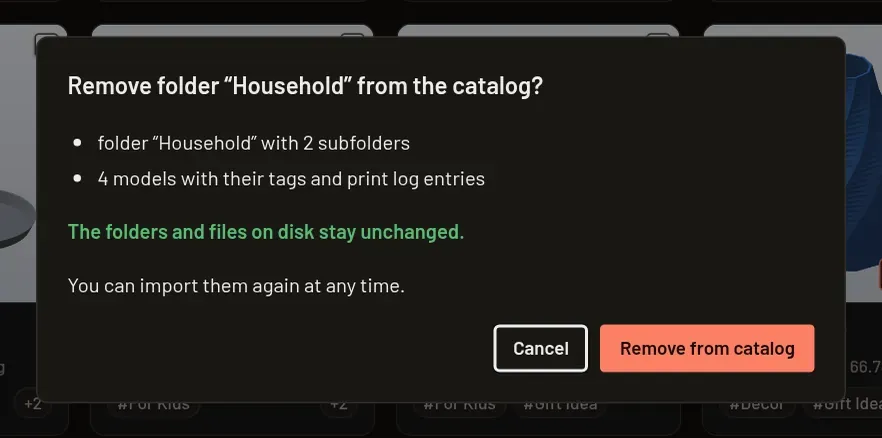
Right-click a folder and choose Remove from catalog to remove it and its catalog subtree. The confirmation shows the folder name, the number of subfolders (excluding the selected folder), and the number of models in the whole subtree (excluding trash entries). Removing them also removes their tag assignments and print log entries. Folders and files on disk stay unchanged, and you can import them again later. Existing trash entries are kept.
Removing the catalog location folder or one of its ancestors in the catalog is refused. The message reads:
Reset the entire catalog in Settings.
File location and keyboard
Section titled “File location and keyboard”The context menu offers “Show in file manager”, called “Show in Explorer” on Windows and “Show in Finder” on macOS. The same action is available on the detail page and in the detail panel.
Ctrl/Cmd+A selects all models in the current filtered view. M opens “Move to …”, and Ctrl/Cmd+Z
undoes the last move or rename. Escape closes an open menu or dialog first; without an open menu
it clears the bulk selection. “Add tag” suggests existing tags as you type.
More keyboard shortcuts.