
Material Manager
The Material Manager
Section titled “The Material Manager”The Material Manager is an independent manager for your filament spools and resin bottles, separate from the model catalog. Open it via “Material Manager” in the navigation rail on the far left.
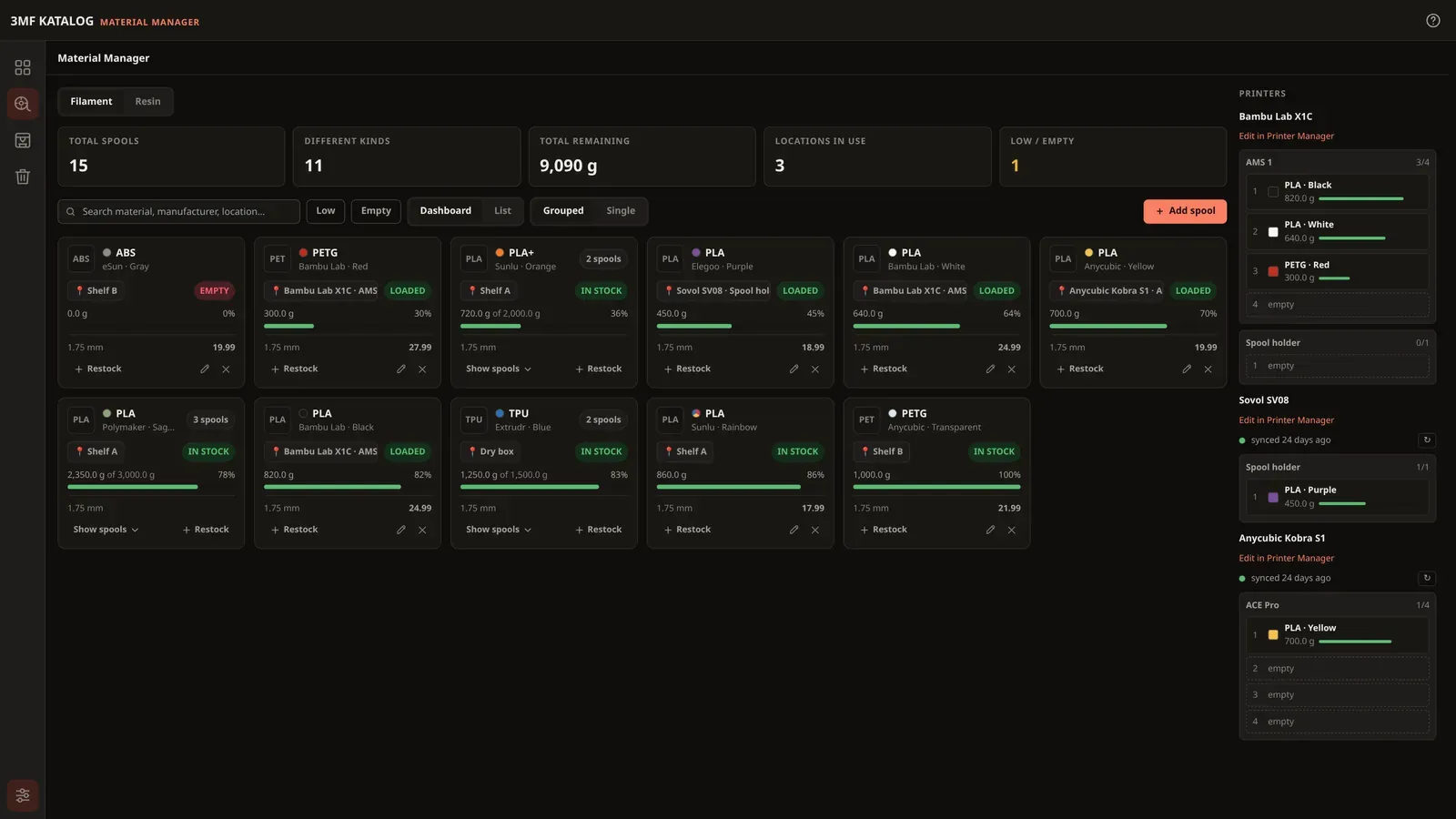
At the top is a stats bar (total spools, total remaining weight, occupied storage locations, spools with low/empty stock, number of “Different kinds”). Each spool card shows material, manufacturer, color, storage location, remaining weight as a bar and percentage, and a status: In stock (green), Low (orange, once stock is running low), or Empty. The “Low”/“Empty” filter buttons or the search field help you find spools that need reordering soon.
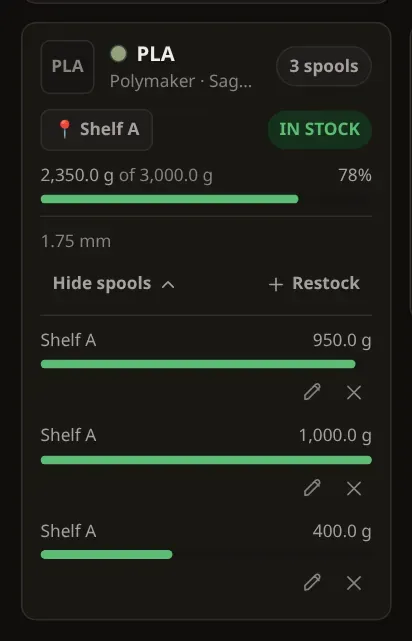
Grouped or single: The “View” switch with “Grouped” and “Single” (grouped by default, your choice is remembered) applies to the dashboard and the list. Grouped, equal spools form one card with the number of spools, the total remaining amount and the total target amount; clicking “Show spools” shows the single spools, each with its own bar. Spools in a printer form one group per unit (for example “X1C · AMS 1”). Cards are sorted by remaining share, lowest first. “Single” shows every spool on its own card.
As an alternative to the tile view, there’s a sortable list view (“List” next to “Dashboard”):
“+ Add spool” opens the form for a new spool:
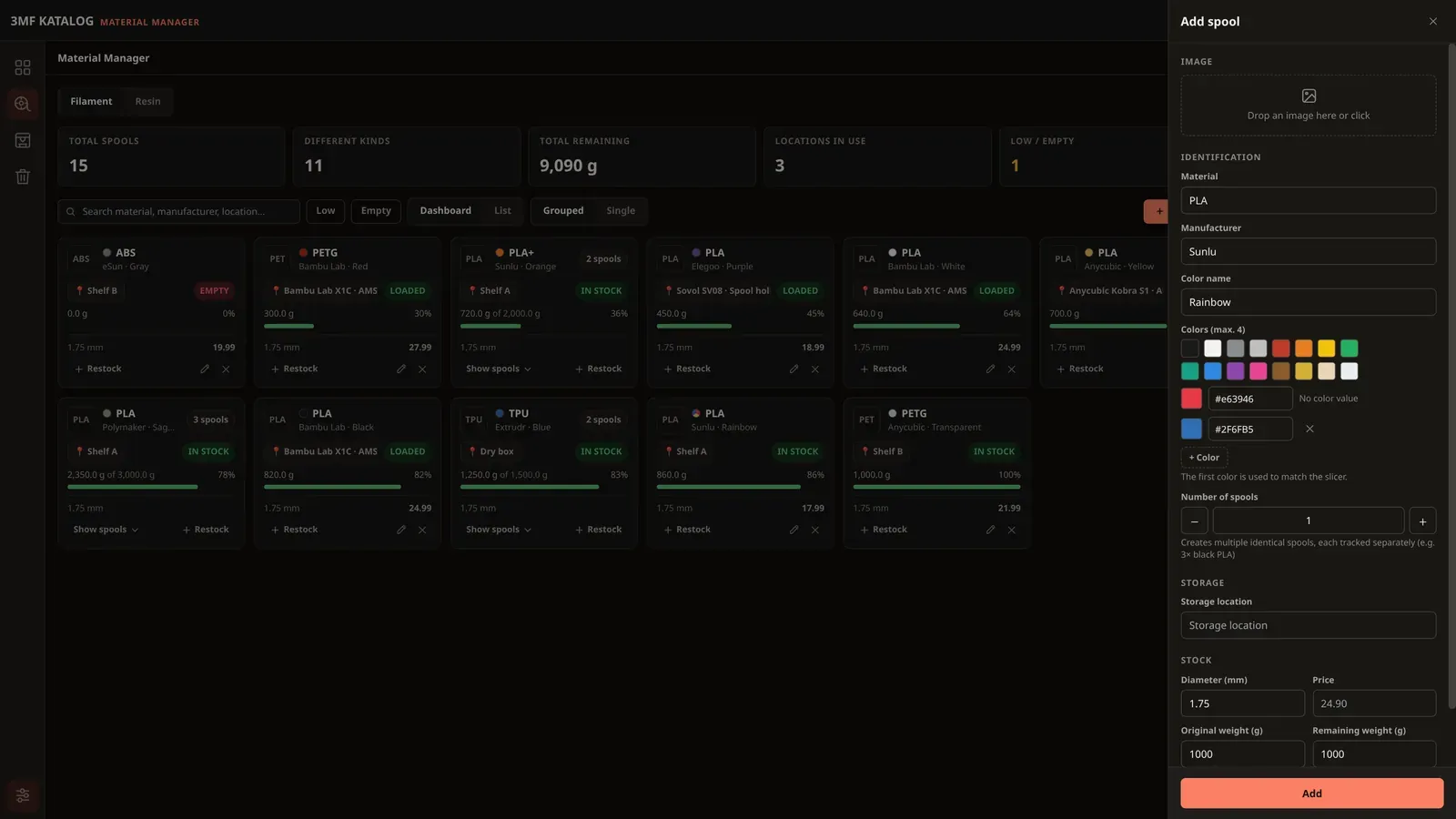
Besides the usual fields (material, manufacturer, color, storage location, diameter, price, original/remaining weight, optionally a photo), you can also set a quantity here: adding, say, three identical PLA spools at once still gives each one its own, independently tracked remaining weight. Weights are stored to 0.1 g. For material, manufacturer, and storage location, the app suggests previously used values as you type (autocomplete). A new spool starts with the weight last used for the same manufacturer and material (otherwise for the manufacturer, otherwise 1000 g); the field stays editable. Pick the photo by clicking the image field, or drag it straight from your file manager onto the field (one PNG, JPG or WebP file, up to 5 MB). If an image doesn’t fit, the notice appears right below the image field and the form stays open when you save: choose another image or close the notice with ✕ to save without it.
Multicolor spools: Under “Colors (max. 4)” a spool can have up to four colors (“+ Color”, “Remove color N”); they appear as a split color dot, and such a spool is labelled “multicolor”. The first color is used to match the slicer colors.
Edit with a double-click: Double-clicking a card or a row in the list opens the same form as the pencil ✎.
Restock: When you’ve bought more of a spool you already have in stock, click “+ Restock” on its card (in the list: “+” in the row). In the small window, choose the quantity (1 to 20) and adjust amount, price and storage location if needed. They are prefilled from the template; the storage location is its home location if it currently sits in a printer. The new entries copy type, material, manufacturer, color, color value, image and diameter, are full and go to storage. Afterwards they get a brief green outline. Escape or a click outside the window closes it without adding anything.
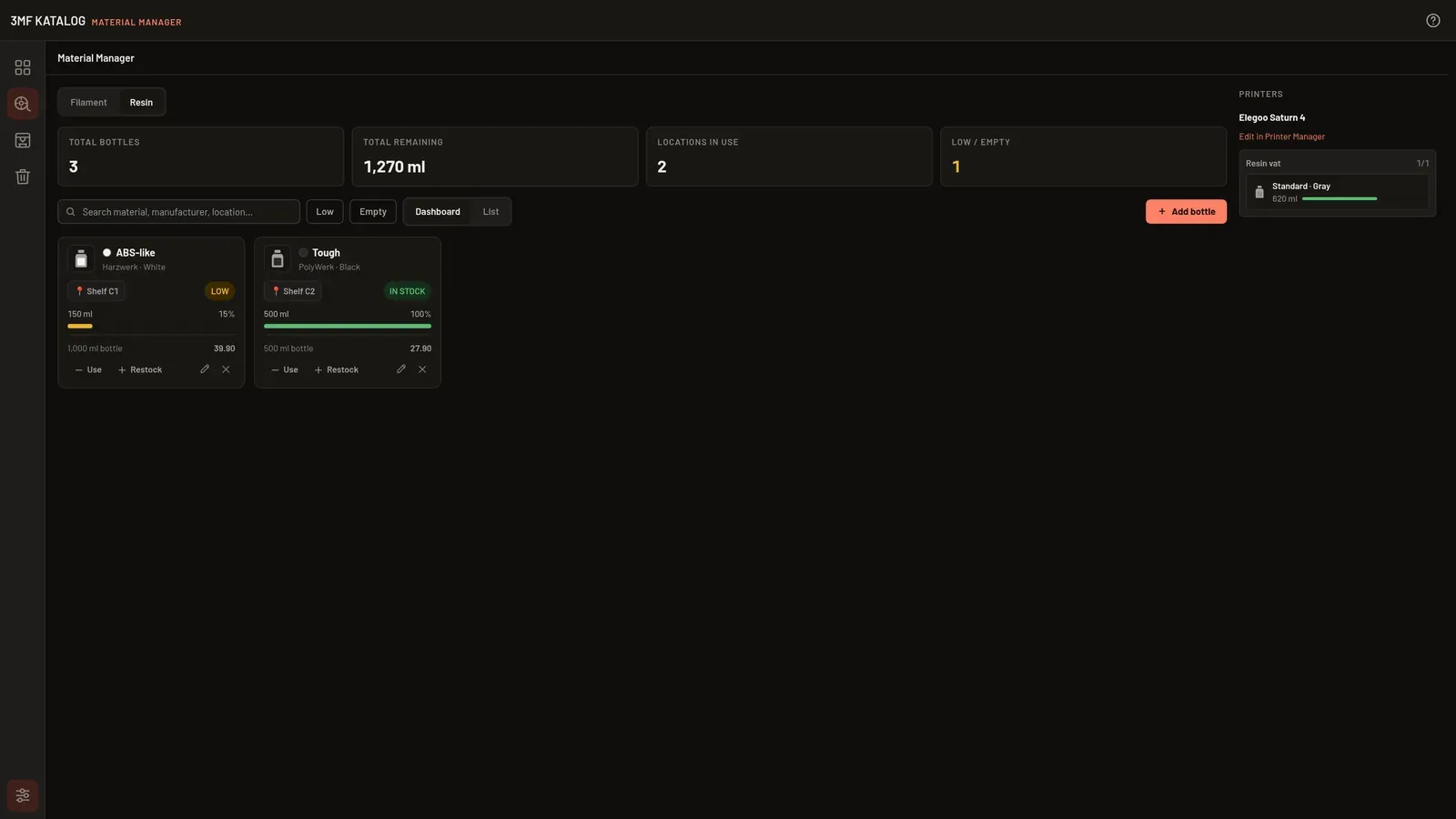
Resin: Use “Filament | Resin” at the top of the stock to switch to your resin bottles; the app remembers your choice. Overview, list, search and stats then show only resin, with amounts in milliliters (“Total bottles”). “Add bottle” there always creates a resin bottle, while the filament area always creates a spool. Instead of the weight you enter the “Volume (ml)”, there is no diameter, and material and manufacturer suggest resin values. When you’ve used resin, click “− Use” on the bottle and enter the milliliters (to 0.1 ml); the remaining amount never drops below 0. Resin bottles never go into a filament slot, only into the resin vat of a resin printer (see Resin printers), and are left out of “Is there enough filament?” and the material cost.
Suggestion when loading: When you load a spool from storage into a slot, the app marks the spool with the smallest rest as “Suggested: smallest rest”. For resin bottles (loading into the resin vat, deducting usage by hand) it says “Suggested: smallest rest that is still enough”.
Is there enough filament?
Section titled “Is there enough filament?”For 3MF files sliced in Bambu Studio or OrcaSlicer, the detail page compares the filament needed (summed over all plates) with your spools: same material and similar color. For each filament you see a status:
- enough — a matching spool has enough remaining weight,
- enough with spool change — only enough if you load a second spool along the way,
- not enough — with the missing amount,
- unclear — no matching spool found or no slicer data.
The app also names the matching spool with its remaining weight and tells you whether it is in a printer (printer · unit · slot) or where it is stored. The print queue shows the same status as an icon and calculates top to bottom with the combined need. Nothing is deducted.