
Settings
Settings
Section titled “Settings”The gear icon at the bottom of the navigation rail opens Settings. They open in the right-hand panel next to your models and folders (in the catalog in place of the details panel; in the Material Manager and the Printer Manager over the main area). “Close settings” or Esc closes them again. They’re split into four tabs: “General”, “Slicer”, “Catalog” and “Info”.
General
Section titled “General”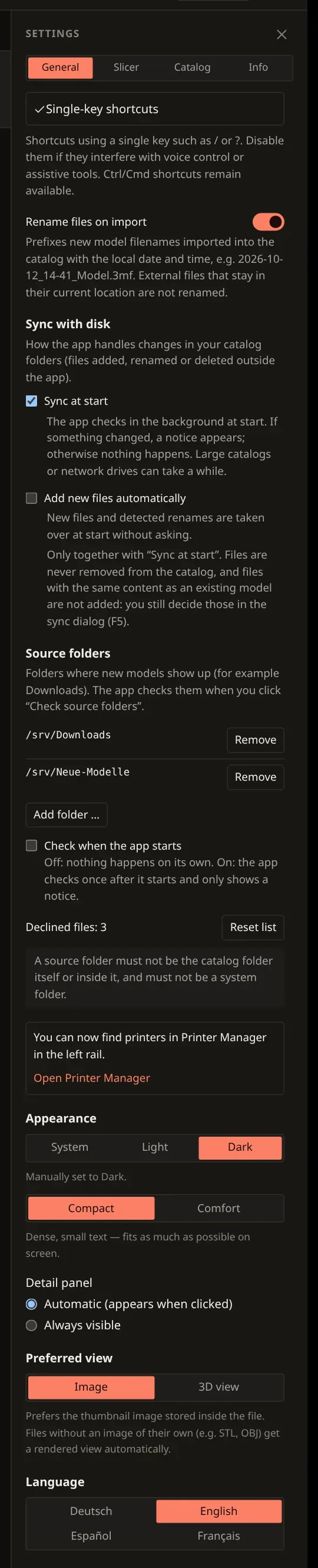
-
Appearance — follows your system setting automatically, or fixed to light/dark. Right below it, the density setting: “Compact” (dense, small text, a lot at a glance) or “Comfort” (larger text, graphics, and controls, noticeably easier to read).
-
Preferred view — whether the catalog and the detail page default to the stored preview image or the rendered 3D view. Missing snapshots are rendered automatically in the background, one file after another. With “Image”, this happens for files without an image of their own (e.g. STL, OBJ).
-
Language — German, English, Spanish, or French, effective immediately without a restart.
-
“Detail panel” — “Automatic (appears when clicked)” or “Always visible”.
-
“Single-key shortcuts” — disables keys such as
/and?; Ctrl/Cmd shortcuts remain available. Keyboard shortcuts and tips. -
“Rename files on import” — off by default; prefixes new model files with the date and time on import. Date in file names.
-
“Sync with disk” — “Sync at start” and “Add new files automatically”, both off by default. Sync at start.
-
“Source folders” — folders that are checked for new models, with “Add folder …”, “Check when the app starts” and “Declined files”. Source folders.
Slicer
Section titled “Slicer”Configure detected and manually added slicers.
Reset catalog · Backup & restore
Catalog
Section titled “Catalog”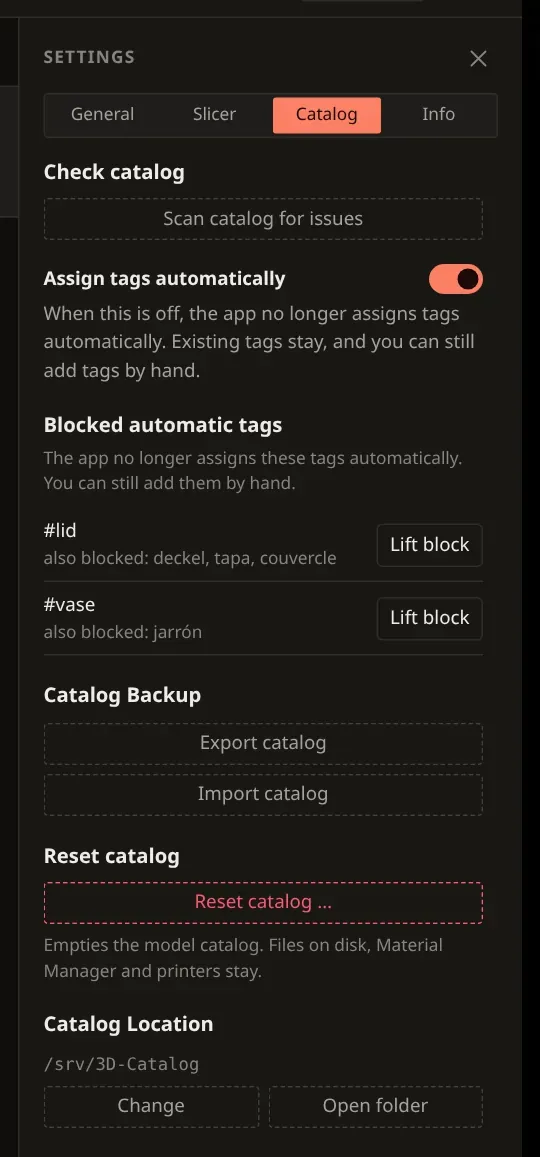
- Scan catalog for issues — a manually triggered scan finds orphaned file paths (a file listed in the catalog but no longer present on disk) and inventory duplicates, with cleanup via a selection dialog.
- Assign tags automatically — on by default. When it is off, import, sync with disk and source folders assign no tags automatically. Existing tags stay, and you can still add tags by hand.
- Blocked automatic tags — lists tags you blocked with “Remove and do not assign automatically again”. You can still add them by hand; “Lift block” ends a block. The list still applies if you turn automatic assignment back on.
- Catalog Backup — Backup & restore.
- Catalog Location — shows the current base directory and lets you change it or open it directly in the file manager. Changing it opens the same dialog as the initial setup.
Printers (now in the Printer Manager)
Section titled “Printers (now in the Printer Manager)”Manage printers in Printer Manager in the left rail. “Open Printer Manager” under “General” also takes you there. The “Connection” switch sits at the bottom of the printer list; each printer’s “Connection & network” area contains its address and connection test. Assign spools and bottles in “Material Manager”.
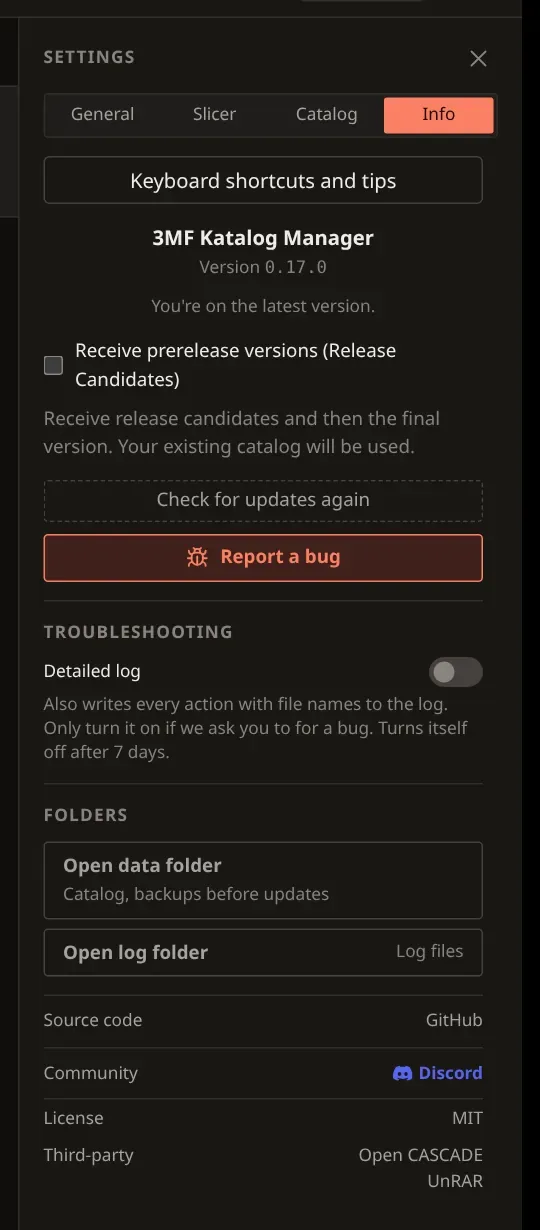
Shows the installed version, the MIT license, and links to the source code, Discord and third-party licenses, and the same update information described in Updating: whether a newer version is available, a “Check for updates again” button for a manual check, and — after installing one from within the app — the date and backup file name of that update.
The check button shows Checking… while checking; afterwards the tab shows the result or a check failure. Report a bug and Detailed log are also here (see Reporting a bug).
Under FOLDERS, Open data folder opens the folder with your catalog and the backups taken
before updates (update-backups), and Open log folder opens the folder with the log files.
There are two buttons because on Windows and macOS the log files are kept in a different system
folder than the catalog.
“Info” also provides “Keyboard shortcuts and tips” and the “Receive prerelease versions (Release Candidates)” switch. Enabling it opens a warning dialog with a catalog export option. Prereleases and backups.